ExoGeni
The ExoGeni testbeds are managed with the Flukes tool. In order to use Flukes, you need a recent java installation and javaws which is available over the icedtea-web package if not included in the default java installation.
Create a Fed4Fire Account
Visit https://portal.fed4fire.eu/ to register for a Fed4Fire account. Create a request to join the scion project and wait for approval.
Setup Flukes for Testbed Deployment
When the Fed4Fire account was successfully created, visit the dashboard and locate the Download Login Certificate (PEM) button at the bottom of the page. Save the certificate to your local home directory.

Next, download Flukes jnlp file:
$ wget http://geni-images.renci.org/webstart/flukes.jnlp
Now create the file ~/.flukes.properties in your home directory with the following contents:
orca.xmlrpc.url=https://geni.renci.org:11443/orca/xmlrpc
user.certfile=/path/to/my/certificate.pem
user.certkeyfile=/path/to/my/certificate.pem
enable.modify=true
ssh.key=~/.ssh/id_dsa
# SSH Public key to install into VM instances
ssh.pubkey=~/.ssh/id_dsa.pub
# Secondary login (works with ssh.other.pubkey)
ssh.other.login=yourname
# Secondary public SSH keys
ssh.other.pubkey=~/.ssh/id_dsa.pub
# Should the secondary account have sudo privileges
ssh.other.sudo=yes
# Path to XTerm executable on your system
xterm.path=/usr/bin/xterm
Set user.certfile, user.certkeyfile, and ssh.other.login accordingly. Additionally, you may want to enter another SSH key than your default one, as Flukes only supports a maximum key length of 1024.
After saving the configuration you can start Flukes with:
$ javaws /path/to/flukes.jnlp
This will download Flukes and might take a while. If Flukes asks for a password for your PEM file, enter the password you used for your Fed4Fire account.
Load the Testbed and Run it
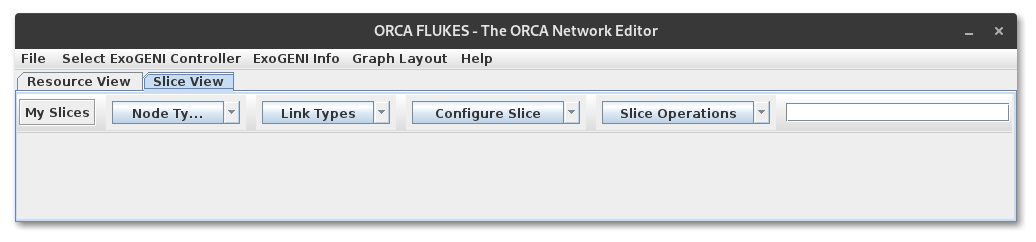
When everything is properly setup, Flukes should finally open with an empty screen.
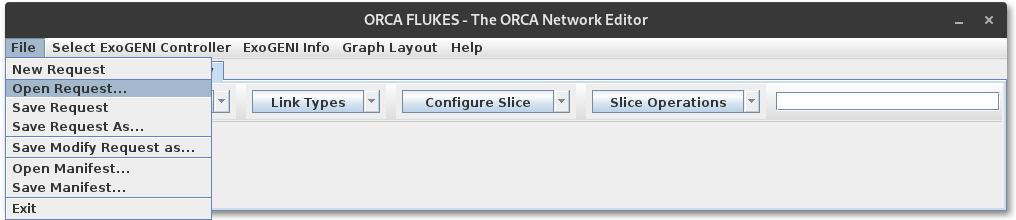
Now, download the default ScionLab ExoGeni configuration and load it into Flukes like this:
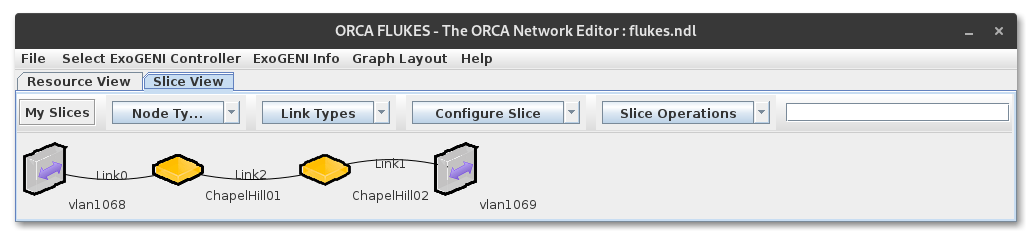
In order to open the submenus in the toolbar you have to precisely click on the arrows of the dropdown menus. Otherwise, the menus won't open. Also note, that the menu items won't highlight when hovering them. Just click on them and it will eventually work. Be patient, it might take some time...
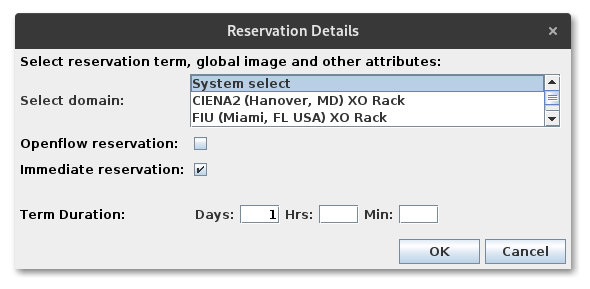
To configure the duration for which the experiment should run, go to Configure Slice / Reservation Details and enter the desired duration.
Tip
Have a look at https://fedmon.fed4fire.eu/overview/ to check which testbeds are up and running.
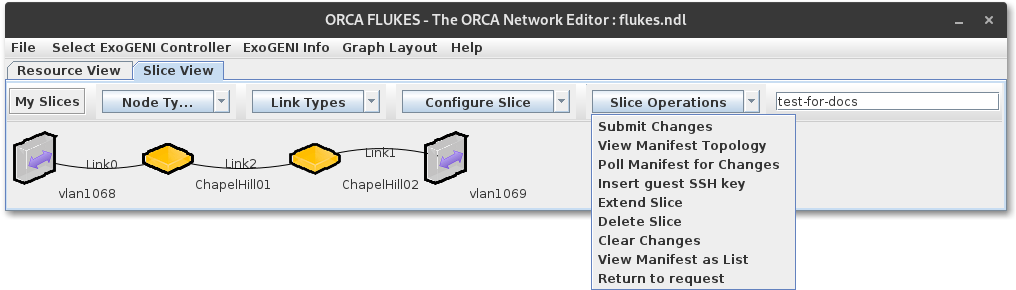
To run your experiment first give it a name and then click on Slice Operations / Submit Changes.
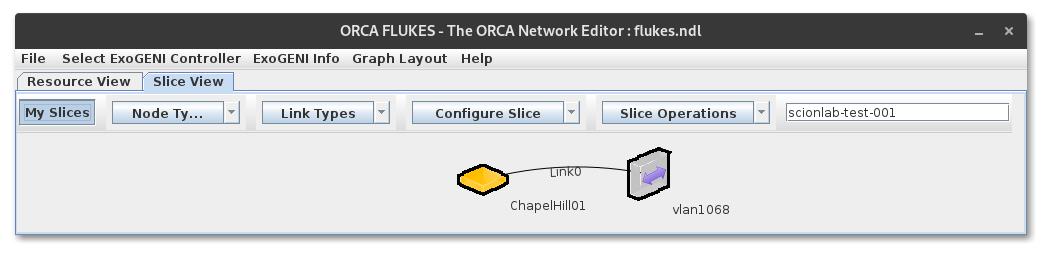
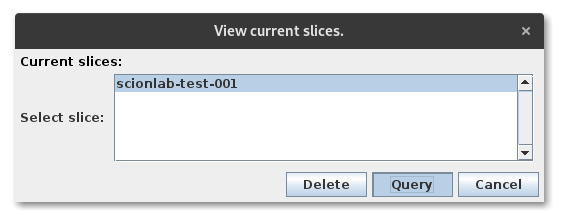
After the changes got submitted, Flukes will try to get the resources up and ready. To view the progress on this, click on My Slices and select your slice and hit Query.
Info
You can also use the Query feature of Flukes to check the status of any runing slice you have access to.
Note
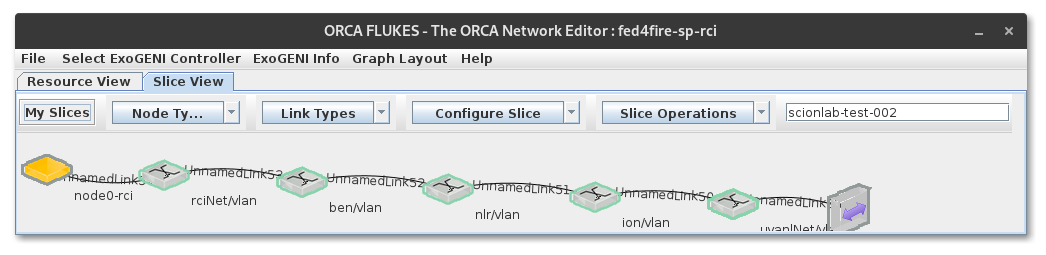
The testbed creation is very fragile!!! Make sure all links and nodes you entered in your request are fully connected when querying your status. It happens quite often that links get lost...
Warning
I got frustrated waiting for a working configuration of the ScionLab configuration for the screenshots, therefore I used some old screenshots where the query looks o.k. Please don't be confused by different names of the nodes in the screenshots.
The properties of all nodes in the shown graph will contain detailed information on the reservation progress.
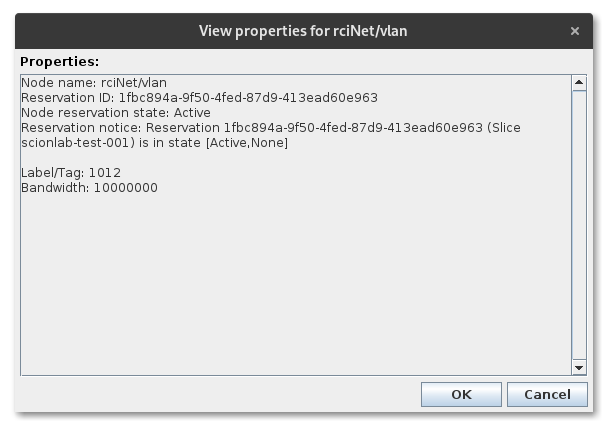
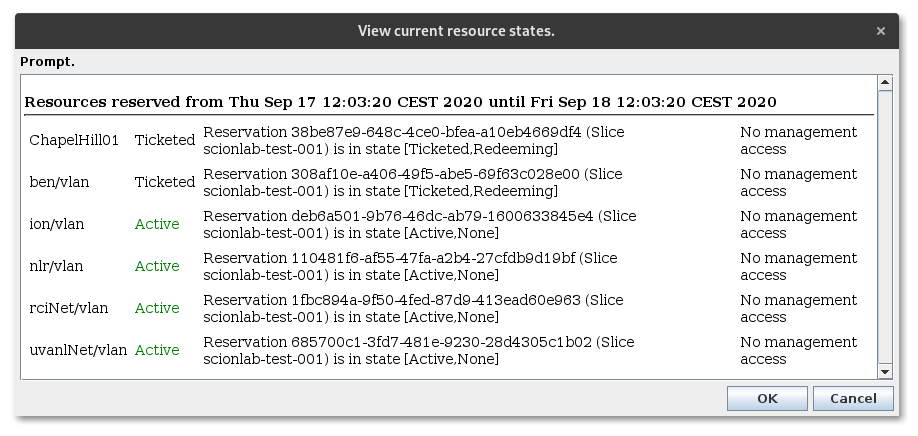
Alternatively, you can view a summary of all reservations under Slice Operations / View Manifest as List.
If something fails, contact the Fed4Fire support (contact provided by David).
Configure Flukes Machines
TODO
scionlab user creation script with authorized_keys.
Attention
Wait for Brecht to fix machines in NC, USA. Currently, the openstack controller is down and spin up of new VMs is not possible.
Updating a Flukes Machine
You can set the GNU/Linux distribution release under Edit Properties... in the context menu of all machine nodes in the request graph of Flukes.
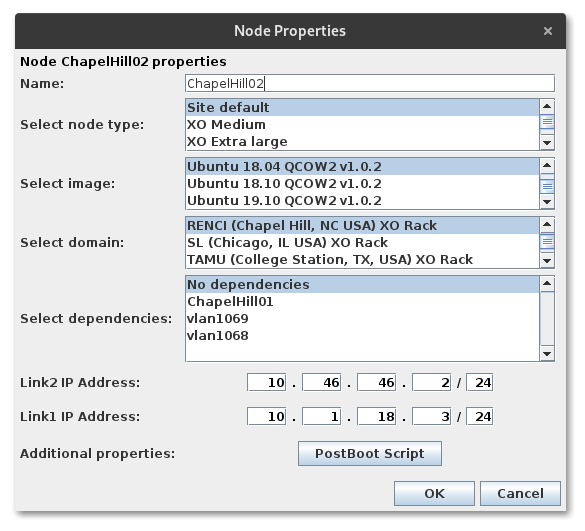
Alternatively, you can follow the instructions for a distribution upgrade from your preferred GNU/Linux distribution.
You can access the machines via SSH with the scionlab user over the link to VirtualWall. Please refer to the corresponding IP addresses in the ScionLab Topology Overview. The authentication is based on your public SSH key. If you don't have access to the machines but believe you should be able to access them, contact the ScionLab administrators.
TODO
Check if ExoGeni machines survive a reboot
Creating Your Own Custom Testbed Configuration
Currently the only location capable of accessing the required VLANs 1065 - 1069 is RENCI / Chapel Hill. All other locations will not work, unless communicated otherwise by the Fed4Fire administrators. Stitching links from RENCI / Chapel Hill to other ExoGeni hosts is also currently not possible. Therefore, the provided ScionLab configuration is the only viable option, for the time being.